If you have Photoshop Elements 9 for Mac and saw the mysterious Adobe logo in your OS X menubar today, here’s what’s going on: Adobe has issued a patch for Elements 9 for Macs, to fix the problems with using the Organizer’s Import from iPhoto command with the latest version of iPhoto (iLife 11). It’s also supposed to facilitate smoother Organizer imports from iPhoto 09.
Download the update from the link in the menubar, or by launching Elements. If the Adobe Application Manager doesn’t appear automatically, then go to Help>Updates, or you can download it here and install it manually:
If you don’t like having the Adobe notification in your menubar, here’s how to get rid of it. Go ahead and run the update, then click Preferences button at the upper right of the Application Manager screen, and turn off this checkbox:
From now on, you’ll only get nagged about updates when you actually launch Elements.
If you bought Photoshop Elements 9: The Missing Manual from Amazon recently and got a black and white copy, please contact them.
Someone messed up and somehow put it into their print-on-demand program instead of shipping the copies from O’Reilly. If you got one of these, get in touch with them and they’ll send you a real copy as a replacement. The book should be in color.
Now that Adobe is including the Organizer with the Mac version of Photoshop Elements, I’m hearing from a lot of people who think that means you have to use the Organizer. You don’t at all, unless you want to use it. If you’ve been using iPhoto to organize your photos, you can continue to use it if you’d rather do that.
Warning: Never try to open files in the iPhoto library from outside iPhoto, and never try to save back into the library from outside iPhoto. This is the shortest route to corrupting your library file and possibly losing all your photos. That library file is for iphoto’s own use only. It’s like touching a gardenia petal: It may seem fine right after you brush against it, but eventually the whole thing turns brown and dies. Don’t do it. Use one of the methods described here instead.
There are two main ways to get your images from iPhoto in Elements. Each has its pros and cons.
Set Elements as your external editor
If you send your photos from iPhoto to the Elements Editor by making Elements your external editor, iPhoto will remember your original photo and your latest saved, edited version. (If you save again, iPhoto replaces your previous edited version with the new one. It only remembers the very last version.) It’s very simple to set this up:
1. Go to the iPhoto menu ->Preferences->General->Edit Photos. From the pulldown menu, choose In application:
These screenshots are from iPhoto 09, but it works the same way with any version of iPhoto.
2. In the window that opens, choose Photoshop Elements as your editor. This step is a bit trickier in Elements 9 than in earlier versions of Elements, since there are two files that look very much alike, and lots of people choose the wrong one. You want this one:
Use this one.
Notice that it’s the upper of the two files that have the blue PSE logo icon to the left of their names. Also note that it’s the one that doesn’t include the version number in the file’s name, and the one without the little curved arrow on the icon. (The lower file is actually an alias that launches the Welcome Screen. If you choose this one by mistake, the Welcome Screen opens, but your photo never makes the trip over to Elements. If that happens, go back and choose the other one.)
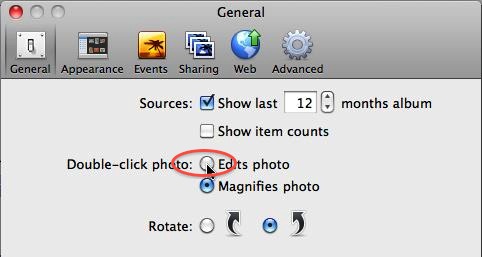
3. Decide how to send your photos. Once you’ve set your external editor, you have two choices for how to send the files to Elements. You can go back to the iPhoto preferences window and click this radio button:
and then double-clicking a photo’s thumbnail will send it to Elements. If you’d rather keep the double-click for enlarging your view of the photo, just right-click/control-click the photo thumbnail and choose Edit in External Editor and send it that way.
3. Set your Save preference in Elements. You may not need to do this but if you find you’re getting the Save As window in Elements when you save, you need to go to Photoshop Elements->Preferences->Saving Files, and set On First Save to Save Over Current File:
Then iPhoto will import your changes and create a proper version, as long as you don’t change the name or the format of the file. If you want to see your original again, right-click (control-click) its thumbnail in iPhoto and choose Revert to Original.
(Note that there’s a bug in Elements 9: If you open the Saving Files part of the preferences, Elements will stop attaching file extensions to your photos, so if you open an image into Elements from outside iPhoto, you need to add the file extension–.jpg, .psd, whatever–manually if you save into another format.
Also, if you have iPhoto 11, the duplication of your original is normal; it remains to be seen whether or not Apple considers it a bug, as many iPhoto owners do.)
Another Way
If you like to keep lots of different versions of your photos around, or if you need to make copies in different formats, there’s another way to get them from iPhoto to Elements.
1. Export your photos from iPhoto. In iPhoto, select the photo(s) you want to edit, then go to File->Export to send copies of your photos to the desktop. Put those copies where you can easily find them.
2. In Elements, use File->Open to open the copy for editing, then make as many changes to the name, file format, or whatever and save the edited images where you can find them. (With this method, many people like to rename files as a matter of course, so they can be sure later on which are the edited files.)
3. In iPhoto, go to File->Import to Library and import your edited files as new images.
The disadvantage of this method is that you don’t have neat iphoto versions, but with this method you can save as many different states of your photo as you like. A lot of experienced Elements folks prefer this to the external editor method, because it’s more flexible.
Now that Photoshop Elements 9 for Mac includes the Organizer, lots of people are wondering how to get their photos and their catalogs from the Windows version of the Organizer onto their Macs. You can do this, but there are a few caveats. The basic process is pretty simple:
The Windows Organizer
1. Install Photoshop Elements 9 in Windows. You have to do this because the Mac version can pick up a Windows catalog, but only if it’s a version 9 catalog, so update your catalog to version 9. If Elements 9 doesn’t find your catalog automatically, in the Organizer go to File->Catalog->Open and find it in the list of catalogs. Check for disconnected files and be sure your catalog is in top-notch shape by going to File->Catalog->Repair, and then choose Optimize in the same window.
2. Back up your catalog to a removable drive. It can even be something like a thumb drive, if your photos will fit. It can’t be a network drive, though. Adobe says you can use a backup to disc, as well, but I’ve never been able to make this work, so I don’t recommend it. To start your backup, in the Organizer go to File->Back up Catalog to CD, DVD, or Hard Drive, and follow the instructions in the window that appears. Once it’s done disconnect the drive from the Windows computer.
3. Install Elements 9 on your Mac, then connect the drive.
4. Launch the Mac Organizer, then go to File->Restore Catalog from Hard Drive. Under Restore From, click the Browse button next to Locate the Backup File, and find your backup. Then under “Restore Files and Catalog to”, choose New Location, click the Browse button to specify where you want to put everything, and turn on the checkbox for Restore Original Folder Structure if you want to keep the same folder organization you had in Windows. Otherwise everything will be dumped into the top level of the destination folder you chose, and the original folder structure and subfolders will be gone. I’d also suggest creating a new folder for the restore, no matter where you decide to put it. Click Restore.
That’s all there is to it, pretty much. Just remember that the Mac Organizer is still pretty much of a version 1.0 product, so you won’t find all the features you had in Windows. No Slide Show Editor, no Watched Folders, no Export command, no Yahoo maps, for example. But having the Organizer for Mac greatly simplifies life if you need to move your photos from Windows to the Mac.
The Mac Organizer with the restored catalog. Looks just the same as it did in Windows.
If you’re done with Elements 9 in Windows, you can uninstall it. Before you do, don’t forget to go to the Editor->Help->Deactivate so that you don’t waste one of your two permitted installations.
This is the file you want the restore to use.
EDIT If you find that your restore consistently fails, try pointing the restore to the file Backup.tly inside the backup folder, instead of to the folder itself. You’ll find it down towards the bottom of the list of contents. (Thanks to jazzfisher from the Elements Village forum for figuring this out.)
Several people have asked me if it’s possible to transfer videos shot with the new iPod Touch directly to an iPad, and yes, you can do this very easily. (It works the same way for photos taken with the iPod’s camera.) Here’s how:
What you need: your iPod, your iPad, the charging cable for the iPod, and the piece of the iPad Camera Connection Kit with the USB port (not the one with the card slot).
How to Do It
Your iPod videos actually appear in the Photos app, in a Camera Roll, if you don’t know where to look for them, but it doesn’t really matter, since the iPad will find them for you.
1. Connect the charging cable to the iPod, and then plug it into the USB port on the Camera Connection Kit piece. It’s a good idea to make sure that both the iPod and the iPad are well charged up, especially if you have a lot of videos/photos to transfer. Both should be turned on.
2. Connect the Camera Connection Kit piece to the iPad and wait a minute. The more stuff you have on your iPod the longer it will take to read it, but usually it doesn’t take terribly long. If you wait a minute or more and nothing happens, check to be sure all the connections are solid. (I couldn’t get a reliable connection while the iPad was in the Apple case, for example.)
3. Your videos (and/or photos) appear on the iPad. You can touch the ones you want to import, if you don’t want to copy them all over. Then touch the blue Import button at the upper right of the screen and choose Import All or Import Selected from the pop-out menu. (You don’t have to select videos/photos if you want to copy them all.)
4. While the video is importing a red Cancel Import button replaces the blue Import button, so you can change your mind if you want. When everything has been downloaded, the iPad asks if you want to delete the videos/photos from the iPod. Your call.
That’s all there is to it! Your videos/photos appear in an album in the Photos app on the iPad and you can just disconnect the iPod once you’re done.
A brief video (sorry about the poor quality but all I had to use was my old still camera):
Today’s the day! Photoshop Elements 9 is here, and there are a lot of major new features, so let’s take a look:
Organizer for Mac. People have been begging for this for a long time, and if you’re a Windows switcher, or if you have a household where people are using both Windows computers and Macs, this is going to be really, really helpful.
The Organizer for Mac
However, it was evidently a big project to get the Organizer ported over to OS X, so this time around the Mac version is lacking a lot of the favorite features in the Windows version, like the Slide Show Editor, Watched Folders, and Yahoo Maps, for instance. Still, if you’re moving from Windows to Mac, it’s a big help.
To convert your Windows catalog, install Elements 9 on your Windows computer and upgrade your catalog, then back up to a removable hard drive (even a thumb drive, if it will hold your catalog and photos) and then install Elements on your Mac and restore the catalog there. (If you won’t need Elements 9 on the Windows computer anymore, deactivate it and uninstall it once you’ve got everything transferred over, so you won’t be using one of your two activations needlessly.)
Cross Platform. When you buy Elements 9, you get both platform versions (Windows and Mac) on the same disk, so you can install it on two Macs, two Windows computers or one of each. No need to buy the program again to install it on the other platform.
EDIT: Adobe says that you only get a serial number that works with both versions with the boxed version, not the download. They suggest that if you need PSE right away, order the boxed version, then install both trials and enter the serial number from the disc version into the trials once you get it. Also, the boxed version includes two discs, one for each platform.
Layer Masks. If you’ve used Elements before, you know that this is probably THE most requested feature that Elements has been missing since version 1.
The blown out sky is masked out, ready for a replacement
Adobe finally listened, and brought them to Elements 9. If you haven’t used Elements before, you won’t understand yet all that this means, but for now suffice it to say that it’s going to make following tutorials written for full Photoshop a whole lot easier, as well as giving you a lot more options for changing your mind about your edits later on. If you’ve used one of the add-on tools to add masks to an earlier version of Elements, you’ll love how much easier it is when they’re built right into the program.
Tip: Elements doesn’t have the Quick Mask, but you can get pretty much the same effect by painting a mask with the Selection brush in Mask mode.
Fun Edits. This is one of my favorite things in the new version. Now Guided Edit walks you through creating an Apple style reflection like you see everywhere in ads these days, a Lomo effect, Out of Bounds (where the subject appears to be leaping or moving out of the photo), and a 60s Warhol-style pop art portrait. These are really fun, even for advanced Elements folks.
Content Aware Fill. This was the biggy in Photoshop CS5, and it comes to Elements too, sort of. In Elements it’s only in the Spot Healing Brush and as an option for filling in the edges of a panorama, but at least it’s here.
Style Matching. Did you ever spend hours creating a special look for one of your photos and then wish you could just copy it over to another image? Elements 9 includes a new style merge, which lets you crib the overall look from one image and copy it to another. The results can be pretty unpredictable, but that’s part of the fun.
Getting Social. Finally–finally!–you can upload photos direct to Facebook from Elements. (That sure took long enough!)
New Creations. The whole Create process (for photobooks, cards, collages, etc.) got a major makeover this time. It’s a tad confusing the first time, but now you can do almost anything you can do in Elements as you create a new project, and there’s a heap of new graphics, backgrounds and so on to help you do it, too.
Move that Photo. If you’ve been driven batty by the Elements 8 Print Window, you’ll be happy to know that Elements 9 lets you put your photo where you want it on the page.
So that’s what’s hot in Elements 9. What’s not? Well, if you hate the dark color scheme, you won’t be much happier with Elements 9. Dark again, and no option to change it, although they did work on improving the contrast over Elements 7 and 8. Some old bugs got fixed (you can finally set the frame rate for an animated gif in the Mac version this time, but you can’t edit an existing animated gif), but there are some new ones to make up for it. Each version of Elements seems to make more demands on your operating system, and Elements 9 is no exception. (EDIT Alas, it appears the frame rate problem is back in the version of PSE 9 for Mac that got shipped out. It was fixed at one point.)
So if you have Elements, should you upgrade? For a lot of people Layer Masks alone will be worth it, aside from the other new features, but I’d always suggest downloading the trial version first and giving that a good hard test drive to see if it’s worth it for you and if it runs well on your computer.
Pros: no contract, small, easy to use after initial setup
Cons: often slow, keeps asking for setup
When the new iPod Touch came out, I was really hoping for a pay-as-you go 3G option like the one for the iPad, but no such luck. Well, there’s been beaucoup ballyhoo about the new Virgin Mobile MiFi 2200, so I decided to give it a try on a trip to the Pacific Northwest last week. It’s gotten rave reviews, with an upfront cost of $150 retail (you can do about 30% better on the web if you shop around), and no contract, just $40 a month for unlimited use or $10 for 100MB for ten days. Your own personal wifi hotspot wherever you go–what’s not to love? Well, a couple of things, actually.
It’s certainly small and light enough. Weighs only a couple of ounces and hardly takes up any space. However, the charger is another story. It’s also nearly weightless, but at not quite 2-1/2″ x 2″ x 3/4″ it seems surprisingly big and clunky, especially when you compare it to the current wall adapter for the iPod/iPhone.
Setup is a bit of a hassle (But I just created a log-in password! What’s this one for?), but it’s doable, which is a good thing, for reasons you’ll read about in a moment. Actually using the MiFi is very simple–one button and that’s all. All, except for needing to go back to the user guide several times at first to figure out what the one button is trying to tell you (blinking amber? something wrong? charging?). Once you learn its repertoire, it’s very simple.
The new iPod with the MiFi
Virgin says it’s good for about four hours of continuous use or 40 hours of standby on a single charge. I found I actually got closer to five hours, but that standby was a lot less. If I used it about 45 minutes during the day and it got left on overnight (it goes to standby after about ten or fifteen minutes of inactivity, at least in my experience), it would start flashing red–Charge me! Charge me!– almost immediately after I woke it up the next morning. Still, it’s plenty of time for normal use, and you can use it while it’s plugged in, too, so you don’t have to go offline to let it charge up.
So how well did it work? For the most part, pretty well. As long as I was in an area where you’d expect to have cellular service (not on the Sol Duc trail in Olympic National Park, for instance) there was usually a connection. Now the speed of that connection varies quite a lot. I had given it a good test drive at home before I left, and even there, where you would expect the speed to be fairly constant, it varied from “Darn, maybe I can get rid of my regular internet service,” to “watch paint dry”. Although Virgin says it’s unlimited service, one has to wonder if this isn’t the way they put a real life choke on usage. I didn’t notice anything particularly irritating about getting mail or web browsing, most of the time, but streaming video is completely impossible with this thing. If you want a MiFi so you can spend your evenings watching old Twilight Zone episodes on YouTube, this isn’t for you. It also takes a while to wake up or to establish a connection when you first turn it on, a minute or more, sometimes.
The other major irritation was that it kept asking me to go through the activation process all over again. It does this whenever it can’t find a signal, which is understandable if slightly annoying, but even when I was in urban areas where I knew there must be a signal it would often forget that it had been activated. After the first couple of times you get used to the drill, but if you do get one, take your sign up info with you or you may be stuck.
On the whole, I would say it’s worth it. It let me check mail and use the map app and look around for info on the Internet, and it gives me the option of whether to take my iPod or my wifi-only iPad when I travel. The slow connection was the most painful part.
EDIT 10/30/10: Interestingly, I was in Asheville, NC this week and there the mifi is blazingly fast, much faster than the hotel’s wifi, so I suppose it must depend on where you are. If you happen to be lucky in your location, it’s really good, but it hasn’t been like that anywhere else I’ve been, alas.
EDIT 1/13/11: Virgin changes the terms for new accounts:
How will it work?
Starting February 15, 2011, if you go over 5GB in a month on the $40 Unlimited Plan:
Your data speeds will be limited for the remainder of the monthly plan cycle. During this time, you may experience slower page loads and file downloads and lags in streaming media.
Your data speeds will return to normal as soon as you buy a new Broadband2Go Plan.
This change will only affect plans bought on or after 2/15/2011.
Incidentally, tried the mifi in Ft. Lauderdale last week–worst ever, just unusable. Dial-up would have been faster.
About Barbara
Harpist, arranger, and music publisher, Barbara is also a Mac fan and the author of the Missing Manual books for Photoshop Elements.
Because of spam attacks I've had to disable the contact form, but if you want to reach me, email me at barbATbarbarabrundage.com, only substitute @ for the AT in the address.